Helping design and engineering professionals discover, evaluate and specify technologies and processes that shorten the design cycle and enable success.



May 2026 Special Focus: Artificial Intelligence in Design and Simulation
In this Special Focus Issue, learn about the latest developments in the integration of artificial intelligence into engineering workflows.

April 2026 Special Focus Issue: Generative Design
In this Special Focus Issue, Digital Engineering takes a look at how generative design solutions can be used across different types of design problems and with a variety of manufacturing approaches to accelerate design space exploration, and…
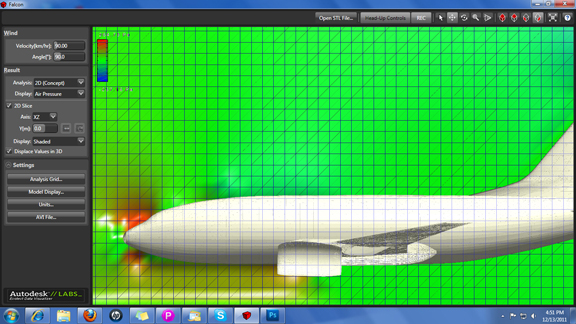
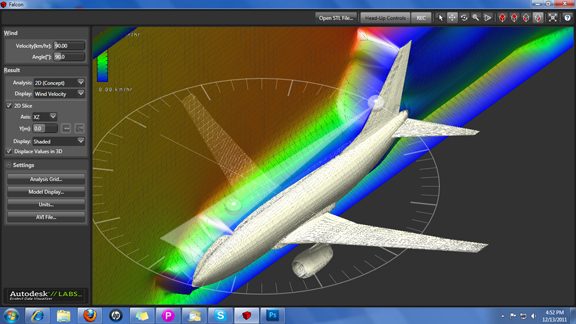
Project Falcon, Autodesk's latest technology preview at Autodesk Labs, is flying straight into the chambers where specialists conduct wind tunnel tests. The downloadable application functions as an independent software program, but it's designed to complement surfacing programs like Autodesk Alias.
Once installed, Project Falcon allows you to import a design as an STL file, then simulate a wind tunnel test on it. The interface is fairly straightforward, with just enough controls to let you run basic tests. You set the wind velocity and direction, set the analysis plane's orientation, specify the type of results you want to see (pressure, airflow, or displacement volume), then watch the screen come to live.
The results -- wind flow patterns and pressure fields -- are displayed in real time (or near real time speed, if your computer has slower processors). Specialists who wish to do more detailed FEA and CFD analyses may need more sophisticated packages, but for design engineers exploring different geometric shapes and curvatures, Project Falcon's tool set is just the right amount.
If you wish to share your results with someone, or keep a record of it to defend your decisions, you may record the wind tunnel test results as AVI files and save them to your local drives. For a wind tunnel simulation program, the software is surprisingly lightweight. It runs on a typical workstation or PC (obviously, if you have multicore CPUs with larger memory footprint, you'll get better performance).
In my view, digital wind tunnel simulation is not a replacement of physical wind tunnel test, but an easy-to-use software like Project Falcon can help steer you in the right direction in early conceptual phases. You can use it to avoid designs that have problematic geometry and curvatures so that when the physical prototype is ready to go through a real wind tunnel test, you can be confident it won't produce catastrophic design flaws.
For more, watch the video demonstration below:
Update: I couldn't resist the idea of running a wind-tunnel test on my own head, so I did it. Here's the process:


Kenneth Wong is Digital Engineering's resident blogger and senior editor. Email him at [email protected] or share your thoughts or suggestions at digitaleng.news/facebook.
Follow DE
Join over 90,000 engineering professionals who get fresh engineering news as soon as it is published.






About Us · Contact Us · Editorial Team · Advertising · Privacy Policy · Subscriber Services · © 2026 Digital Engineering 24/7 · Peerless Media