Helping design and engineering professionals discover, evaluate and specify technologies and processes that shorten the design cycle and enable success.



May 2026 Special Focus: Artificial Intelligence in Design and Simulation
In this Special Focus Issue, learn about the latest developments in the integration of artificial intelligence into engineering workflows.

April 2026 Special Focus Issue: Generative Design
In this Special Focus Issue, Digital Engineering takes a look at how generative design solutions can be used across different types of design problems and with a variety of manufacturing approaches to accelerate design space exploration, and…
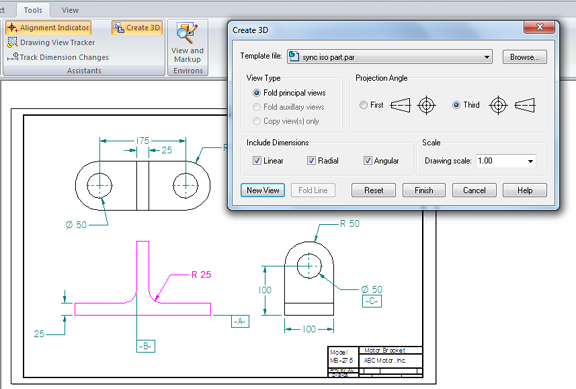
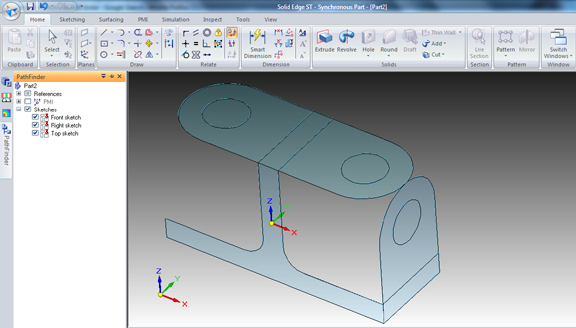
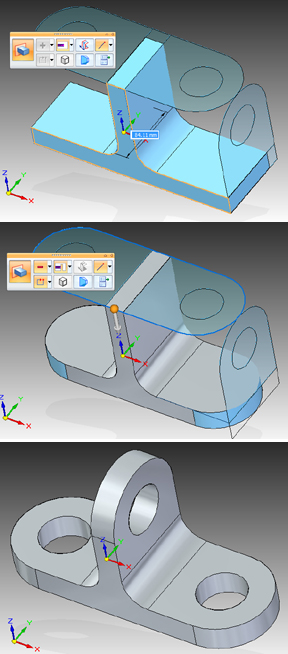
I'm guessing building a 3D solid out of a series of drawing views isn't exactly your idea of innovation. Nevertheless, it's the kind of grunt work that's almost unavoidable. If the part you need exists only in archival 2D drawings, you have no choice but to rebuild the part based on the front, top, and side views.
In Solid Edge with Synchronous Technology 2 (SE with ST2), you'll find the Create 3D command under the Tools tab. This function lets you align -- or fold -- the corresponding front, top, and side views (and any other additional views) into a box-shape setup in 3D space, giving you a good starting point to envision how the finished 3D part should look.
The direct modeling tools in SE with ST2 allow you to select sketch profiles and extrude them to add depth and volume -- an ideal approach for turning 2D views into 3D solids. Conversely, it allows you to use selected regions and profiles to trim solids, which works well when you need to use the top or side view to crop excess materials.
Sometimes, folded views might not line up perfectly, leaving you with gaps between them. To address this, SE with ST2 gives you the Fold Line option, which lets you specify the line along which the two views should be aligned. The same function can also be useful in cases where you feel you can get better extrusion results by folding views along other lines beside the profile's edges.
In case you need to relocate a view to a different surface (often, that makes your extrusion operations much simpler), you may use SE with ST2's cartwheel handle to drag the view to its new location, just as you might move a sketch profile along an axis. The import wizard guides you through the process step by step, letting you choose to retain -- or change, as the case may be -- the original drawing's line types, fonts, colors, and units.
Grunt work is not something many of us would voluntarily perform (hence the name), but with SE with ST2's flexible editing tools, you may have fewer reasons to grunt. For more, watch the video report below:


Kenneth Wong is Digital Engineering's resident blogger and senior editor. Email him at [email protected] or share your thoughts or suggestions at digitaleng.news/facebook.
Follow DE
Join over 90,000 engineering professionals who get fresh engineering news as soon as it is published.






About Us · Contact Us · Editorial Team · Advertising · Privacy Policy · Subscriber Services · © 2026 Digital Engineering 24/7 · Peerless Media