Helping design and engineering professionals discover, evaluate and specify technologies and processes that shorten the design cycle and enable success.


Alert!
Digital Engineering ceased publication on July 1, 2026. This website remains available as an archive of engineering content.
For inquiries or information, please email [email protected].

May 2026 Special Focus: Artificial Intelligence in Design and Simulation
In this Special Focus Issue, learn about the latest developments in the integration of artificial intelligence into engineering workflows.

April 2026 Special Focus Issue: Generative Design
In this Special Focus Issue, Digital Engineering takes a look at how generative design solutions can be used across different types of design problems and with a variety of manufacturing approaches to accelerate design space exploration, and…

Personally, I tend to make impulsive decisions, but this week, I've been learning to be more logical.
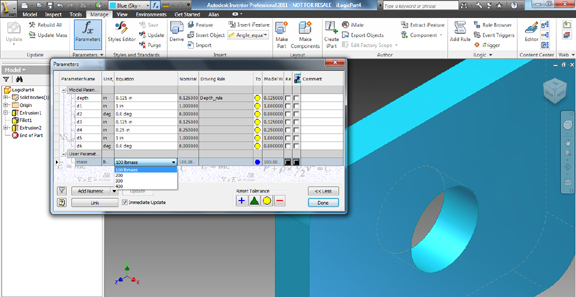
Having explored Alias Design for Inventor 2011, I delved into iLogic, a feature that lets you build configurable parts in the upcoming release of Inventor. iLogic is ideal for situations where you need variations, such as a bracket that automatically decreases or increases the number of holes within it depending on its width and length. In fact, if you do it right, you can even have the holes completely suppressed when the bracket's surface area becomes too narrow to accommodate the placement of a single hole. Similarly, you can build a configurable part that incrementally increases its thickness depending on the force or load it's expected to withstand.
iLogic allows you to build rules using a programming language, but don't let that scare you. The actual code writing may be limited to picking a basic expression -- the most common one is the If-then setup -- and replacing crucial portions by directly selecting the features available in the model from the structural tree.
So if you want to, for instance, be able to instruct a part to either include or exclude chamferred corners by selecting True or False, the code would look like this:
If Chamfer = True ThenFeature.IsActive("Chamfer1") = True
ElseIf Chamfer = False Then
Feature.IsActive("Chamfer1") = False
End If
And if you want the part to include a series of holes at the height of 0.5 inch, but exclude it at the height of 0.25, the code would look like this:
If height = 0.5 ThenFeature.IsActive("Holes") = True
ElseIf height = 0.25 Then
Feature.IsActive("Holes") = False
End If
Of course, if you happen to know programming (I don't), you can write those instructions in. But if you don't, you can craft these chunks of code by picking the desired parameters you want to transform from a structural tree. The configuration instructions do need to be in a specific syntax, so it may take you some time to master it, but the results are well-worth the effort.
For more, watch the video clip below:


Kenneth Wong is Digital Engineering's resident blogger and senior editor. Email him at [email protected] or share your thoughts or suggestions at digitaleng.news/facebook.
Follow DE






About Us · Contact Us · Editorial Team · Advertising · Privacy Policy · Subscriber Services · © 2026 Digital Engineering 24/7 · Peerless Media