Helping design and engineering professionals discover, evaluate and specify technologies and processes that shorten the design cycle and enable success.


Alert!
Digital Engineering ceased publication on July 1, 2026. This website remains available as an archive of engineering content.
For inquiries or information, please email [email protected].

May 2026 Special Focus: Artificial Intelligence in Design and Simulation
In this Special Focus Issue, learn about the latest developments in the integration of artificial intelligence into engineering workflows.

April 2026 Special Focus Issue: Generative Design
In this Special Focus Issue, Digital Engineering takes a look at how generative design solutions can be used across different types of design problems and with a variety of manufacturing approaches to accelerate design space exploration, and…
With apologies to fans of Led Zeppelin and Black Sabbath, I'm appropriating (or "misappropriating," some might say) a musical term to discuss sheet-metal modeling in Solid Edge with Synchronous Technology 2 (SE with ST2). So no shaggy-haired dudes, no amplified guitars -- just a few words about bending metal in pixels.
Sheet metal work is quite unlike traditional part modeling. Instead of features and blocks, you work mostly with plates, flanges, and tabs. Compared to part modeling, sheet-metal work flow is much more predictable. You spend a lot of time drawing rectangles and turning them into tabs; you repeatedly select edges to add flanges.
In 2008, when SE with ST made its debut, it did so with one glaring omission: no dedicated sheet-metal operations. The second release of SE with ST fixed that. But sheet metal modeling in SE with ST2 is not simply a standard set of menu items. I find that SE with ST2 anticipates many of the steps in the standard work flow.
If I sketch a rectangle on the surface of an existing plate, the software deduces (correctly) that I want to turn that into a tab with the same thickness, to be connected to the existing plate. So once I click on the extrusion handle, it automatically converts the sketch into a tab.
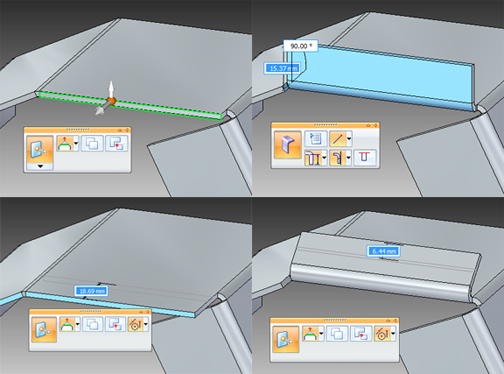
After selecting an edge, I don't need to bother telling SE with ST2 I want to create a flange. I can simply drag the extrusion handle to create the flange. In fact, I don't even need to specify the direction of the flange. The direction to which I drag the handle sets the direction of my flange. Along the way, whenever I pick a menu item, a floating toolbar appears to let me customize the operations (bend radius, offset distance, whether to create the bend from outside surface or inside, and so on).
With history-based modelers, the user has a tendency to create sketches or features in precision from the beginning. For instance, if you're about to create a tab, you begin by drawing a rectangle with the exact width you want, positioned at a precise distance from an outer edge. You could, of course, still do that in SE with ST, but I find that I can forgo such rigid ways of working.
Taking advantage of the ease with which I can modify dimensions and parameters (and doing so without worrying about regeneration failure), I might just draw a rough profile for a tab, place it at random on a surface, then adjust its size and position after the fact.
Quite often, sheet metal parts are analyzed not as solids but as a collection of 2D surfaces. With SE with ST2, I can use the mid-plane surface creation command and dialog box to automatically turn a 3D sheet metal piece into 2D planes. Other commands -- for creating contour flanges, punching dimples, and closing two bended corners -- make sheet metal creation in SE with ST2 much easier.
For more, watch the video demonstration below:


Kenneth Wong is Digital Engineering's resident blogger and senior editor. Email him at [email protected] or share your thoughts or suggestions at digitaleng.news/facebook.
Follow DE






About Us · Contact Us · Editorial Team · Advertising · Privacy Policy · Subscriber Services · © 2026 Digital Engineering 24/7 · Peerless Media