Helping design and engineering professionals discover, evaluate and specify technologies and processes that shorten the design cycle and enable success.



May 2026 Special Focus: Artificial Intelligence in Design and Simulation
In this Special Focus Issue, learn about the latest developments in the integration of artificial intelligence into engineering workflows.

Design & Simulation Software Guide 2025
In this Special Issue, Digital Engineering presents its second annual guide to design and simulation software vendors.
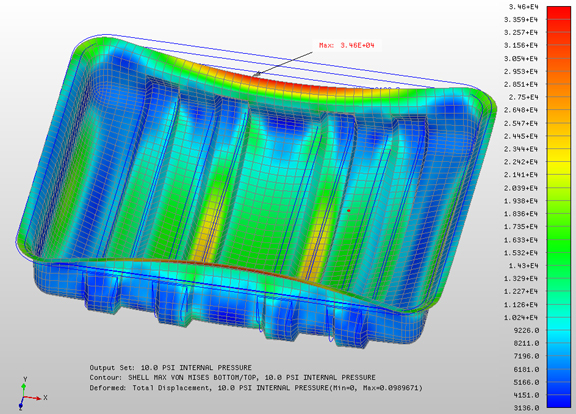
I'm a software user, not a programmer. Given a choice, I'd rather suck on a piece of broccoli than open up an executable code in a text editor. I don't think I'm alone in it. Most of us have grown so accustomed to running software programs from a foolproof graphical user interface (GUI) that we seldom need to -- or want to -- look under the hood and see the actual alphanumeric instructions.
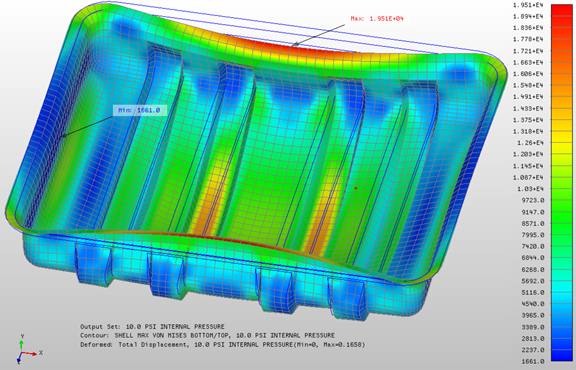
It's the same with analysis and simulation software packages nowadays. The input and output -- load, pressure, and Von Vises -- are much easier to manage and comprehend in a color-coded 3D model with animated deformation patterns. But the real calculation, should anyone care to examine, is available as strings of text. Unlike a dabbler like me, a dedicated analyst might directly interact with these numbers by editing the FEA output file in Notepad.
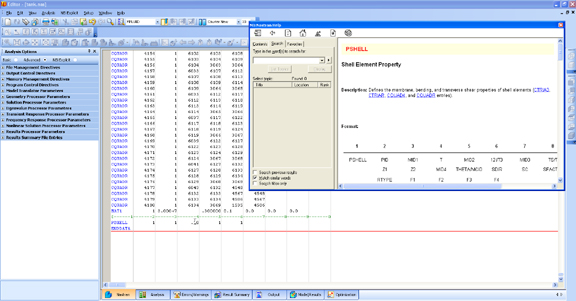
With NEi's Nastran software, you can do the same from the NEi Editor tab. The difference between NEi Editor and a generic text editor like Notepad is, with the former, you can highlight something and hit F1 to obtain additional explanation about the item in question.
For those who feel comfortable dealing directly with the raw output data, certain edits are easier done in a text editor than in the software GUI (for example, changing the thickness or a shelled part). Other functions, like identifying a specific node, might be easier done from the GUI, because selecting a vertice on the 3D model with your mouse pointer is easier than sifting through rows and rows of numbers to locate the node in question.
Since NEi Editor is accessible from inside Nastran, it makes the iterative, cyclical workflow much easier: Change an input value, run analysis, then change the value again, and so on.
For more on NEi's FEMAP 10, the latest version, visit the company's home page.
For a demonstration of NEi Editor, watch the video below:


Kenneth Wong is Digital Engineering's resident blogger and senior editor. Email him at [email protected] or share your thoughts or suggestions at digitaleng.news/facebook.
Follow DE
Join over 90,000 engineering professionals who get fresh engineering news as soon as it is published.






About Us · Contact Us · Editorial Team · Advertising · Privacy Policy · Subscriber Services · © 2026 Digital Engineering 24/7 · Peerless Media