Helping design and engineering professionals discover, evaluate and specify technologies and processes that shorten the design cycle and enable success.


Alert!
Digital Engineering ceased publication on July 1, 2026. This website remains available as an archive of engineering content.
For inquiries or information, please email [email protected].


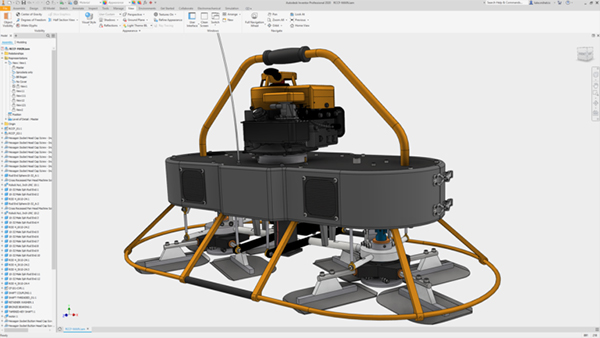

Artificial Intelligence for Design and Engineering Workflows
In this white paper, learn how artificial intelligence and machine learning can improve design and simulation.
Technology Focus: Designing for Optimization & Simulation
Simulation is pervasive, with people from different departments and backgrounds discovering new ways to put it to use, in all of its varied forms.
Scratching your head over what workstation to buy for Autodesk Inventor? Whether you’re a total newbie or an old hand with thousands of product designs under your belt, no one wants to endure lackluster performance, freezing and latency, and the seemingly endless waiting for a complex file to render. You could decide to break the bank and go all in on a maxed-out rocket ship of a workstation, but is this the best way to spend your (or your employer’s) hard-earned money? And will it even guarantee optimal performance?
The problem is one of choice. Too much choice, to be exact. Never before have designers and engineers had so many high-quality workstation configurations to choose from. Who’s the best manufacturer? How many CPUs and cores do you need? Which graphics card is best? How much RAM can you actually use? Solid state drives (SSD) are the bomb, but maybe a humungous HDD for less money makes more sense? And what about hybrid drives? All are important questions, but who has the time to figure it all out?
Probably the best place to start is the Knowledge section of the Autodesk website, which lists the minimum and recommended requirements for Inventor, as well as the certified graphics hardware. This will at least tell you how much horsepower you need and whether the engine should run on gas or diesel—what tires, seats, and transmission to buy is anyone’s guess.
Workstation vendors like Dell also offer guidance and, in some cases, hardware/software bundles.
There’s also a great handout and presentation available on the Autodesk University website titled “Buying the Right Workstation for Inventor.” Both come from Neil Cross, Autodesk Inventor and Vault consultant, self-proclaimed YouTuber, online influencer, and VR enthusiast, and were part of his lecture at Autodesk University 2018 in Las Vegas (Cross also offers some excellent Inventor and general technology advice on his TFI YouTube channel).
If you’re not inclined to wade through the 51-page class handout or the even longer PowerPoint (all of which makes much more sense if you sit through Cross’s YouTube video of the same name), here are a few of the more important highlights from his presentation, along with some comments from other industry experts.
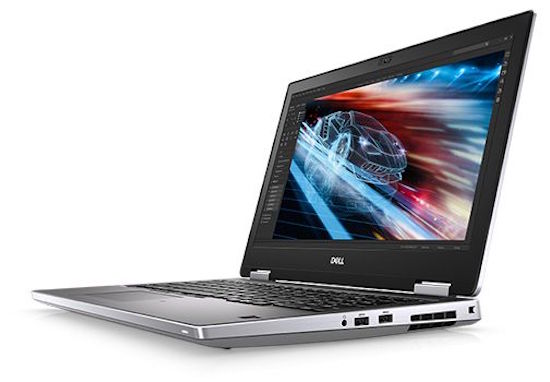
The Dell Precision 7540 workstation includes NVIDIA Quadro RTX graphics, and is configured to support professional applications like Autodesk Inventor. Image courtesy of Dell.
For starters, Cross said to avoid the DIY route, no matter how tempting that may seem. There are many reasons, he said, chief among them that “you have no full system support, you have individually separated staggered warranties from multiple different questionably reliable sources, and should anything go wrong you’re unlikely to know why and where... which will significantly increase the duration of downtime which to me is an unacceptable risk.”
Marc Sauro, Product Marketing Manager at Autodesk, agreed, adding that an increasing number of people have learned this lesson the hard way. “Unless you’re a dedicated gamer, the days of building your own Frankenstein’s monster are over,” he said. “I also suggest going with a workstation that’s been certified to work with Autodesk. I went rogue while configuring my current workstation a while back and have regretted it ever since.”
Throughout his presentation, Cross offered extensive details on disk drives, storage, memory, and more, but it’s quite clear there are no one size fits all solution, which is why it’s important to speak with an expert versed in both software and hardware before going too far down the workstation road. That said, some basic recommendations include:
This brief summary pays short shrift to the complexities discussed in the presentation. If you just want a quick rundown of what to buy, here is Cross’s current “sweet spot” for a typical user of Autodesk Inventor Professional (your mileage may vary):
In his presentation, Cross explains that while Inventor itself doesn't require such the power available in the higher-end NVIDIA GPUs, he recommends the Quadro P4000 and P5000 because other applications running on the machine may require more graphics processing power, and becuase they offer a larger amount of VRAM. If the more powerful Quadros are out of your budget range, the Quadro P2000 will suffice.
Barrett Geyer, EDS Marketing Manager for Synergis Engineering Design Solutions, a Gold Tier Autodesk partner in Quakertown, PA, offered a few additional remarks, starting with the advice to buy as much computer as you can afford. “We’ve been with Autodesk since 1985, and can tell you that hardware requirements continue to increase every year,” he said. “Much of this is driven by CAD software’s exponentially increasing capabilities, which in turn requires greater system resources.”
The general trend is to make models ever more intelligent and quite large, driving up hardware requirements. Couple that with the desire to show clients high-quality, life-like renderings of designs, and it’s quite easy to max out a sub-standard machine.
“Again, hardware selection depends heavily on the design requirements of each specific firm, but considering how quickly workstations can become obsolete, we truly tell our clients to buy as much hardware as they can afford,” said Geyer. “Time is money, and having to wait an extra five seconds for a rendering to finish truly adds up over the three-year lifespan most companies place on IT hardware.”


Kip Hanson writes about all things manufacturing. You can reach him at [email protected].
Follow DE






About Us · Contact Us · Editorial Team · Advertising · Privacy Policy · Subscriber Services · © 2026 Digital Engineering 24/7 · Peerless Media